Datasources
Purpose
The Datasources page provides centralized monitoring and control over all data ingestion pipelines feeding into the VesselAI platform.
It allows users to view configured data sources, check their execution status, monitor platform connectivity, and control ingestion jobs — all from a single interface.
User Interface Overview
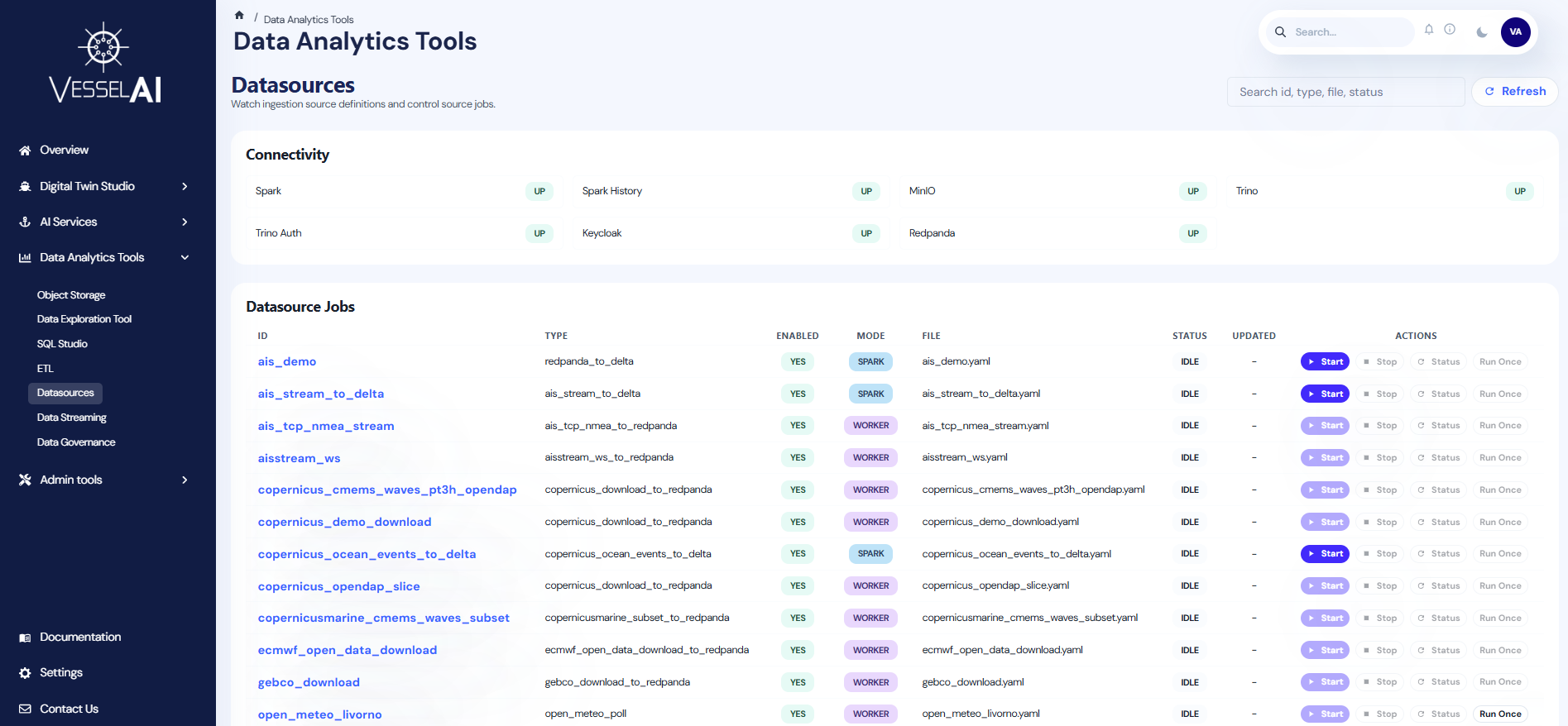
The Datasources page is organized into three sections:
- Header Bar — Page title with search filter and Refresh button
- Connectivity Panel — Live health status of platform services
- Datasource Jobs Table — Full list of configured sources with status and action controls
Header Bar
The top bar provides:
- Search — Filter sources by ID, type, file, or status
- Refresh — Reload all datasource states and connectivity checks
Connectivity Panel
A grid of service health indicators showing live status for:
| Service | Description |
|---|---|
| Spark | Distributed compute engine for ETL jobs |
| Spark History | Historical job execution records |
| MinIO | Object Storage backend |
| Trino | SQL query engine (Lakehouse) |
| Trino Auth | Trino authentication layer |
| Keycloak | Identity and access management |
| Redpanda | Data streaming / event broker |
Each service shows a badge: up (green), down (red), or n/a (gray).
Datasource Jobs Table
The main table displays all configured data sources with the following columns:
| Column | Description |
|---|---|
| ID | Unique identifier for the data source (clickable to open details) |
| Type | Source type (e.g., ais_csv_to_delta, open_meteo_poll) |
| Enabled | Whether the source is active in the YAML configuration |
| Mode | Execution mode: Spark (submitted as Spark jobs) or Worker (managed by ingestion worker) |
| File | YAML configuration file defining the source |
| Status | Current job status: Running, Finished, Submitted, Stopped, Failed, or Idle |
| Updated | Timestamp of the last status change |
| Actions | Control buttons for the source |
Actions
Each datasource row provides up to four action buttons:
Start
Submits the ingestion job for execution. Available for Spark-mode sources when the source is enabled.
Stop
Stops a running Spark job using its submission ID. Only available after a job has been started.
Status
Refreshes the execution status for Spark-mode sources. Requires an active submission ID.
Run Once
Triggers a single execution cycle. Currently supported for specific source types (e.g., open_meteo_poll).
Actions that are not available for a source type will show a tooltip explaining why they are disabled.
Source Details Drawer
Click on any source ID to open the details drawer, which displays:
- ID — Source identifier
- Type — Ingestion source type
- YAML File — Configuration file location
- Enabled — Whether the source is active
- Job State — Current status, Spark submission ID, last update time, and any errors
- Spec — Full YAML specification in read-only JSON format
This provides full visibility into the source configuration and execution state.
Source Types and Modes
Datasources operate in two execution modes:
Spark Mode
Sources that run as Spark jobs submitted through the platform's distributed compute infrastructure. These support Start, Stop, and Status actions.
Worker Mode
Sources managed by the ingestion worker process. These run automatically and do not support manual Start/Stop through the Spark submission API.
What Users Can Do
- Monitor the health of all platform services via the connectivity panel
- View all configured data sources and their current execution status
- Start, stop, and check the status of Spark-based ingestion jobs
- Trigger one-time data pulls for supported source types
- Search and filter sources by ID, type, file, or status
- Inspect full source configuration and job state in the details drawer
- Identify and troubleshoot YAML parsing errors