User Guide
Introduction
1. Introduction
VesselAI is a unified digital twin and AI workspace designed specifically for maritime analytics.
It enables users to:
- Analyze vessel performance and emissions
- Process and explore AIS and telemetry datasets
- Build optimization and predictive models
- Automate workflows and create production pipelines
All directly from a web browser, without local setup.
2. Why Use VesselAI?
Modern maritime operations generate vast amounts of data:
- AIS trajectories
- Engine telemetry
- Fuel consumption logs
- Environmental and weather data
However, transforming this data into actionable insights requires more than just Python scripts. It requires:
- A notebook environment
- Data storage infrastructure
- Pipeline orchestration
- Model tracking
- Version control and reproducibility
Setting up and maintaining this stack locally is complex and time-consuming.
VesselAI provides this entire infrastructure pre-configured and integrated.
You can focus on analysis and model development - not system administration.
3. What the Platform Provides
The VesselAI platform integrates the full analytics lifecycle into a single environment.
| Tool | What it does | Why you need it |
|---|---|---|
| JupyterLab | Interactive notebook environment with pre-installed maritime libraries | Write Python notebooks, explore data, prototype models - no local setup required |
| Dagster | Pipeline orchestration engine | Schedule, monitor, and automate your notebook workflows with full observability |
| MLflow | Experiment tracking and model registry | Log metrics, compare runs, version models, and promote to production |
| MinIO | S3-compatible object storage | Store datasets, model artifacts, and output files in a centralized, shareable location |
| AI Model Library | Pre-trained maritime ML models | Ready-to-use models for CO₂ estimation, vessel position prediction, and more |
| Dashboard | Web UI for the entire platform | Monitor jobs, run inference, create pipelines - all from a single interface |
These components work together — you do not need to configure them individually.
4. Key Advantages
No Local Setup
All dependencies, libraries, and configurations are already installed.
Centralized Data Storage
All datasets and results are stored in VesselAI Object Storage (MinIO).
Reproducible Workflows
Notebook runs and pipelines are tracked and versioned.
Collaboration
Users operate in a shared platform environment.
Security
Access is managed via Keycloak SSO and centralized authentication.
Maritime-Focused
The platform is tailored for vessel performance, emissions, routing, and optimization use cases.
Getting Started - Accessing the Platform
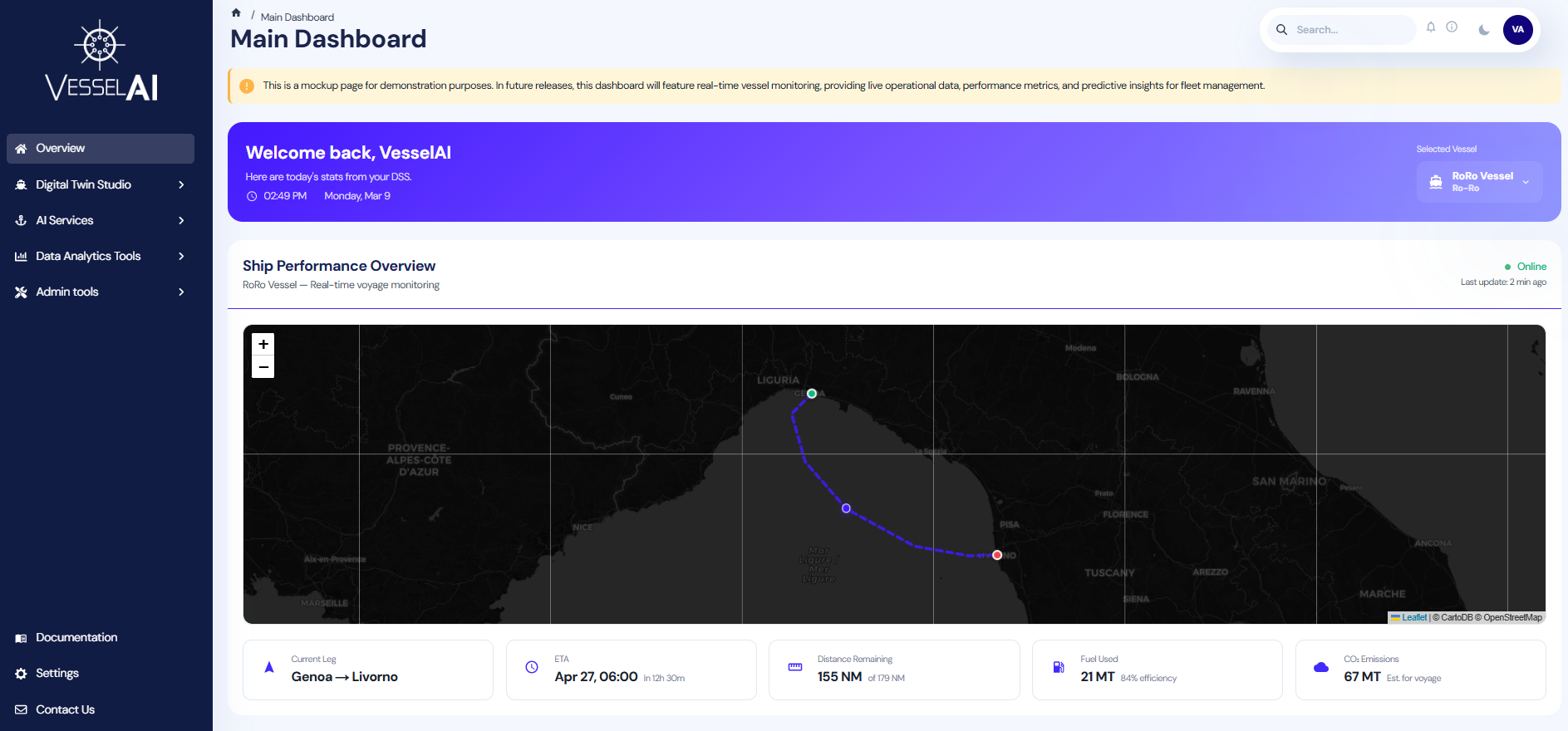
Navigate to the VesselAI platform URL provided by your administrator. Log in with your Keycloak credentials. You will land on the Dashboard, which provides access to all platform tools via the sidebar.
Platform Workflow Examples
The following sections present practical, end-to-end workflows that demonstrate how the core components of the VesselAI platform work together.
Each workflow is designed as a guided example, helping you move from data to results using real platform features.
Example 1: Mooring Analysis Pipeline - Chaining Jobs
Platform tools used in this example: Notebook Environment, Object Storage, AI Workflows (observational mode)
Objective
This workflow demonstrates how to:
- Execute two analytical notebooks as independent jobs
- Convert them into Dagster observational jobs
- Chain them into a structured pipeline
- Create a repeatable maritime analytics workflow
The goal of this pipeline is to:
- Preprocess mooring-related vessel and environmental data
- Perform optimization analysis on mooring configurations
Conceptual Overview
The pipeline consists of two notebooks:
1. Mooring Preprocessing Notebook
mooring_preprocessing.ipynb
Purpose:
- Load raw mooring-related datasets
- Clean and validate sensor inputs
- Perform feature engineering
- Store processed data in Object Storage
Output:
- Structured dataset ready for optimization
2. Mooring Optimization Notebook
mooring_optimization.ipynb
Purpose:
- Load preprocessed dataset
- Apply optimization logic
- Evaluate mooring configurations
- Output optimal solution and diagnostics
Output:
- Optimized mooring parameters
- Performance metrics
- Result artifacts saved to Object Storage
Each notebook performs a complete analytical stage.
In this example, we will execute each notebook as a single asset (Observational Mode).
Step 1 - Create Observational Jobs
Navigate to:
AI Services → Notebook Environment
A. Create Mooring Preprocessing Job
-
Locate:
mooring_preprocessing.ipynbBefore linking the notebook to Dagster, users can open it to examine the preprocessing workflow, including data loading, cleaning, and feature engineering steps.
-
Click the Link to Dagster Job icon.
-
Select:
Observational Modeand click:
Link
In Observational Mode:
- The entire notebook is executed as one asset.
- The notebook runs sequentially.
- Logs and execution status are tracked in Dagster.
The job will now appear in:
AI Services → Workflows
B. Create Mooring Optimization Job
Repeat the same process:
-
Locate:
mooring_optimization.ipynb -
Click Link to Dagster Job
-
Select:
Observational Modeand click:
Link
Now you have two independent jobs:
- Mooring Preprocessing
- Mooring Optimization
Each job can be executed separately.
Step 2 - Create a Chain Job
Now we create a pipeline that executes both jobs in sequence.
Navigate to:
AI Services → AI Workflows
Create New Chain Job
- Click Create chain
- Select:
- Step 1 → Mooring Preprocessing Job
- Step 2 → Mooring Optimization Job
This defines execution order:
Preprocessing → Optimization
-
Click:
Create Chainand name you chain job:
mooring_chain_pipeline -
Click:
CreateYour new chain job appears in the job list with a "Chain" badge.
Step 3 - Execute the Chain Job
After creating the chain job:
Click:
Run
The platform will automatically redirect you to the Dagster UI
Step 4 - Launch the Run in Dagster
After clicking Run, you are redirected to the Dagster UI.
In Dagster:
- Click Launch Run (bottom right corner).
- The pipeline execution will begin.
You will see the job executing sequentially:
mooring_preprocessing_job → mooring_optimization_job
During execution, you can:
- Monitor the status of each step
- View real-time logs
- See execution duration
- Identify any errors (if they occur)
The second step (optimization) will start automatically after the preprocessing step completes successfully.
Once both steps finish, the run status will appear as:
Success
Step 5 - View Results in AI Workflows
After the chain job has successfully completed in Dagster:
-
Navigate back to:
AI Services → AI Workflows -
Locate your chain job:
Mooring Chain Pipeline Chain Job -
Click View Results
What You Will See
The Results view provides a structured summary of the latest execution:
Pipeline Overview
- Execution status (Success / Failed)
- Execution timestamp
- Total duration
- Number of steps
- Visual pipeline diagram showing:
- Step 1 → Mooring Preprocessing
- Step 2 → Mooring Optimization
This confirms that both stages executed sequentially.
Step Details
Each step can be expanded to show:
- Notebook used
- Execution duration
- Generated output tables
- Handoff information between steps
For example:
Step 1 – Mooring Preprocessing
- Output dataset saved to Object Storage
- Displays the bucket and storage key of the processed file
Step 2 – Mooring Optimization
- Displays generated result tables (e.g., polygons_csv)
- Shows final output artifacts
Output Tables
The final section displays the pipeline output:
chain_output (CSV – Primary)
This represents the final result of the entire chain job and originates from the optimization stage.
What Happens During Execution
When the chain job runs:
1️. The preprocessing notebook executes:
- Raw data is cleaned
- Features are engineered
- Processed dataset is saved to Object Storage
- The optimization notebook executes:
- Loads processed dataset
- Performs optimization logic
- Saves final results
Dagster ensures:
- Sequential execution
- Failure handling
- Log tracking
- Execution monitoring
Example 2 - Train and Use a CO₂ Emissions Model
Platform tools used in this example: AI Workflows, MLFlow (internal only), Notebook Environment, Object Storage
Objective
In this workflow, you will:
- Run a predefined Dagster job to train a CO₂ emissions model
- Track and register the model in MLflow
- Retrieve the trained model inside a Notebook
- Perform predictions on voyage data
- Visually compare predicted vs actual emissions
This demonstrates a complete AI lifecycle within VesselAI:
Data → Training → Model Registry → Inference → Validation
Part 1 - Train the CO₂ Emissions Model
Step 1 - Open the Training Job
Navigate to:
AI Services → AI Workflows
Locate the card:
Co2 Emissions Training Job
Click:
Run Now
This opens the Dagster job page.
You will see the three pipeline assets:
input_data → trained_model → evaluated_pipeline
These represent:
Loading training data -> Training the model -> Evaluating and logging results
Step 2 - Launch the Configuration
Click:
Materialize All
This opens the Dagster Launchpad configuration editor.
Step 3 - Configure the Run
The Launchpad pre-fills the following configuration:
ops:
  co2__train__evaluated_pipeline:
    config:
      co2_model_name: co2_rfr

  co2__train__input_data:
    config:
      bucket: co2-data
      filename: bulk-cleaned-voyage-data.csv

  co2__train__trained_model:
    config:
      model:
        mlp:
          activation: relu
          alpha: 0.001
          hidden_layer_sizes:
            - 100
            - 50
          max_iter: 1000
          solver: adam

        rfr:
          n_estimators: 100
⚠ Important: You must keep only one model block: Either mlp Or rfr. Delete or comment out the model you do not want to use. If both remain, Dagster will show: You can only specify a single field at path (...config.model). Name your model respectively, for example for rfr keep: co2_model_name: co2_rfr
Step 4 - Optional Customization
You may adjust:
-
bucket → MinIO bucket containing training data
-
filename → Voyage dataset CSV
-
Model hyperparameters
Step 5 - Launch Training
Click:
Materialize
The pipeline will:
- Load voyage data from MinIO
- Train the selected model (MLP or Random Forest)
- Evaluate model performance
- Log metrics and artifacts to MLflow
- Register the model
Step 6 - View Results
Once the run completes:
Return to:
AI Services → AI Workflows
Click:
View Results
You will see:
- Metrics (e.g. MAE, RMSE)
- Model version
- Model name
- Parameters (e.g. Dataset, features)
Note the following: Model Name, Model Version. You will use these in the next section.
Part 2 - Load and Use the Trained Model
Now we switch from orchestration to analysis.
Step 7 - Open Notebook Environment
Navigate to:
AI Services → Notebook Environment
Create a new notebook:
co2_inference_example.ipynb
Select the Python kernel.
Step 8 - Import Required Utilities
import pandas as pd
import matplotlib.pyplot as plt

from utils.minio_helper import minio, mlflowx
Step 9 - Load the Registered Model
Use the model name and version observed in View Results:
model = mlflowx.load_model(
    model_name="co2_rfr_model",   # replace with your model name
    version=1                    # replace with your model version
)

print(model)
The model is now loaded directly from the MLflow Model Registry.
Step 10 - Load Voyage Data
data = minio.read_csv("co2-data/bulk-cleaned-voyage-data.csv") #or upload the path to your data
Select features used during training:
features = [
  "imo",
  "v_draft",
  "v_departure_lat",
  "v_departure_lon",
  "v_arrival_lat",
  "v_arrival_lon",
  "seapassage_distance[m]",
  "seapassage_duration[s]",
  "seapassage_avg_speed[m/s]",
  "time_bf0",
  "time_bf1",
  "time_bf2",
  "time_bf3",
  "time_bf4",
  "time_bf5",
  "time_bf6",
  "time_bf7",
  "time_bf8",
  "time_bf9",
  "time_bf10",
  "time_bf11",
  "time_bf12"
]

X = data[features]
Step 11 - Run Predictions
predictions = model.predict(X)
Select the last 50 samples for visualization:
n = 50
y_pred = predictions[-n:]
y_true = data["co2[kg]"].to_numpy()[-n:]

x = range(n)
Step 12 - Visualize Performance
plt.figure()
plt.plot(x, y_pred, label="Predicted CO2 [kg]")
plt.plot(x, y_true, label="Actual CO2 [kg]")
plt.legend()
plt.title("Predicted vs Actual CO₂ Emissions")
plt.show()
You now have a visual validation of model performance.
Example 3 - Full Mooring Pipeline
Platform tools used in this example: Notebook Environment, Object Storage, AI Workflows (pipeline mode)
Objective
In this workflow, you will:
- Inspect a structured pipeline notebook
- Link it to Dagster in Pipeline Mode
- Visualize step-level assets
- Execute the pipeline
- Review outputs and artifacts
Unlike the previous example (Observational Mode), here:
Each # %% step: block becomes an independent Dagster asset.
Step 1 - Navigate to the Notebook Environment
Go to:
AI Services → Notebook Environment
Locate:
mooring_pipeline.ipynb
Step 2 - Inspect the Notebook Structure
Open the notebook and review the code.
You will notice that the notebook contains special directives such as:
# %% step: setup
Each # %% step: defines a pipeline stage.
For example:
# %% step: setup
This step:
- Loads configuration parameters
- Defines MinIO input/output paths
- Sets optimization controls
- Configures environment variables
Other steps in the notebook include:
- Data loading from Object Storage
- Mooring data preprocessing
- Optimization logic
- Saving results back to Object Storage
- Generating output artifacts
These steps:
- Use
minio.read_csv()to load AIS data - Use
minio.write_csv()to store results - Pass intermediate data between steps
- Generate structured outputs
Step 3 - Link Notebook as a Pipeline Job
Return to the Notebook Environment list.
Click the Link to Dagster Job icon.
In the execution mode dialog:
Select:
Pipeline Mode
Then click:
Link
This tells the platform:
- Parse
# %% step:blocks - Register each step as a Dagster asset
- Create a structured pipeline job
Step 4 - Locate the Pipeline in AI Workflows
Navigate to:
AI Services → AI Workflows
Find the newly created job:
Mooring Pipeline Job
Click the following badge, located under the job's name to open the job details :
mooring_pipeline_job
You are now redirected to Dagster UI, where you can see the assets defined in Jupyterlab notebook.
Step 5 - Launch the Pipeline in Dagster
In the Dagster interface navigate to:
Launchpad
Click (bottom right) :
Launch Run
What You Will See in Dagster
Dagster will display:
- A visual asset graph
- Each
# %% step:as a separate node - Execution progressing sequentially
- Logs for each step
Each step:
- Executes independently
- Has its own logs
- Produces its own outputs
- Passes data to downstream steps
This provides:
- Fine-grained observability
- Step-level failure isolation
- Re-execution capability per asset
Step 6 - Return to AI Workflows
After successful execution:
Navigate back to:
AI Services → AI Workflows
Locate:
Mooring Pipeline Job
Click:
View Results
What You Can Review in Results
-
Pipeline Summary
- Status (Success)
- Execution timestamp
- Step breakdown
- Total duration
-
Step-Level Outputs
Each step displays:
- Output tables
- Stored CSV files
- Object Storage locations (S3 paths)
- Execution parameters
Example outputs:
preprocessed_csv  → s3://ais-data/preprocessed/...
polygons_csv      → s3://ais-data/optimized/...
-
Parameters Section
You can also review:
- Execution configuration
- Environment overrides
- Input bucket / filename
- Runtime settings (e.g., GA generations)
Example 4 - Share Model Results via Observational Notebook Job
Platform tools used in this example: Notebook Environment, Object Storage, AI Workflows (observational mode)
Objective
This workflow demonstrates how to:
- Link an analytical notebook to Dagster in Observational Mode
- Execute it as a single job
- View results in a structured results card
- Share model performance outputs in a centralized interface
This approach is ideal when:
- You want to expose results without exposing code
- You want a clean summary view for collaborators
- You want reproducible execution tracking
Use Case - Fuel Consumption Predictor
The notebook used in this example:
fuel-consumption-predictor.ipynb
This notebook:
- Trains a fuel consumption prediction model
- Evaluates performance using MAE, MSE, and R²
- Generates diagnostic plots
- Produces structured performance metrics
This enables:
- Validation of fuel efficiency models
- Comparison between predicted and actual consumption
- Identification of data distribution patterns
- Performance benchmarking
Results are exposed through a standardized job result card.
Step 1 - Navigate to Notebook Environment
Go to:
AI Services → Notebook Environment
Locate:
fuel-consumption-predictor.ipynb
You may open the notebook to review:
- Data preprocessing logic
- Model training
- Evaluation metrics
- Visualization generation
Step 2 - Link Notebook to Dagster
Click the Link to Dagster Job icon.
Select:
Observational Mode
Click:
Link
What Observational Mode Does
- Executes the entire notebook as one asset
- Preserves notebook execution order
- Tracks logs and execution status
- Produces a structured result card
No pipeline structure is required.
Step 3 - Run the Job
Navigate to:
AI Services → AI Workflows
Locate the newly created job card:
Fuel Consumption Predictor Job
Click:
Run
You will be redirected to the Dagster UI.
Click:
Launch Run
The notebook executes fully.
Step 4 - View Results
After successful execution:
Return to:
AI Services → AI Workflows
Click:
View Results
What You Will See in the Results Card
The results card presents:
-
Execution Summary
- Status (Success)
- Notebook name
- Execution timestamp
-
Metrics
Displayed clearly in structured format:
- MAE
- MSE
- R²
- Additional evaluation metrics (e.g., R² without CO₂)
These metrics provide an immediate understanding of model accuracy.
- Plots
The card displays generated visual diagnostics, including:
- Distribution histograms
- Correlation heatmap
- Boxplots of numerical variables
- Fuel and CO₂ distribution comparisons
This provides:
-
Quick model validation
-
Outlier detection visibility
-
Variable relationship insight
-
Parameters
Expandable section showing:
- Model configuration
- Execution parameters
- Hyperparameters used